10 Easy Steps to Install IPA File in iPhone Without Jailbreak
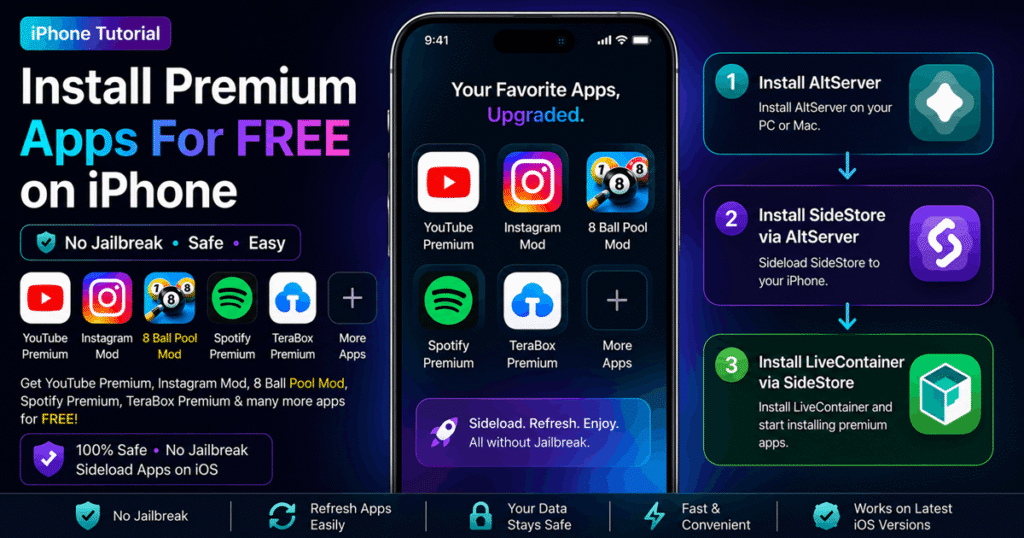
In this tutorial, you will learn how to install ipa file in iPhone without jailbreak your iPhone. This setup allows you to sideload and manage IPA apps directly on iOS, refresh apps without needing a computer every week, and install unlimited premium applications like: YouTube Premium, Spotify Pro, TeraBox 1TB Unlocked, Instagram Mod, 8 BallPool Extended Guidelines and many more
inforiver
Table of Contents
ToggleComplete Tutorial to install IPA File in iPhone:
- How to install AltServer on Windows or Mac
- How to establish connection between iPhone & Laptop
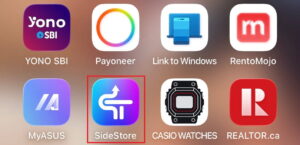
- How to install SideStore in iPhone
- How to setup SideStore in iPhone
- How to configure Pairing File with SideStore
- How to login in SideStore
- How to install LiveContainer using SideStore
- How to Test Live Container
- How to install LiveContainer2
- How to Unlimited Sideloading
- How to move App from LC1 to LC2
- How to create shortcut on iPhone’s HomeScreen
- How to bypass 7 days refresh app to avoid revoked
Part 1 — Install AltServer in Laptop
Download AltServer Classic in your PC or Laptop from the official website: https://altstore.io
- Download altinstaller.zip
- Extract the zip
- Run Setup.exe
- Reboot may required
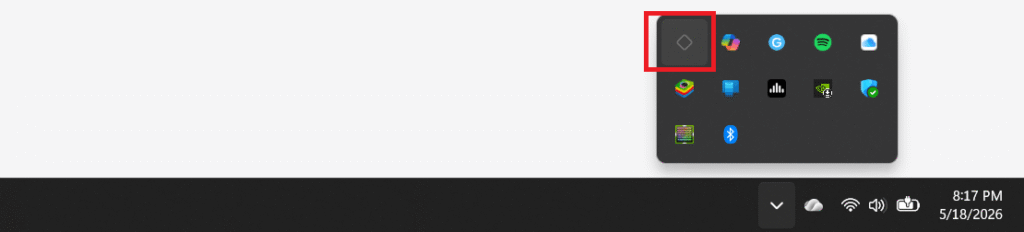
- You will see AltServer icon at bottom right corner in System Tray
Part 2 — Establish Connection between iPhone & Laptop
Install iTunes & iCloud (Windows Only)
- Download from Apple website:
- iTunes Download
- iCloud Download
- Note: Do NOT install Microsoft Store versions.
Connect iPhone
- Connect iPhone using USB cable
- Unlock device
- Tap: Trust This Computer
- Enter passcode
- Done
Enable Wi-Fi Sync
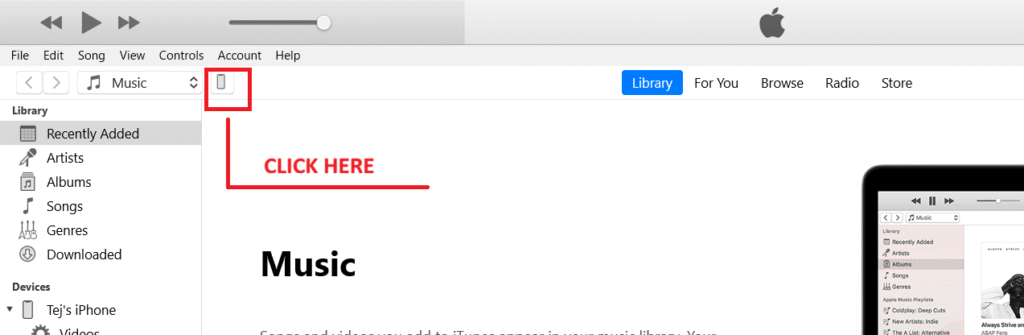
- Open iTunes
- Enter Apple ID & Password
- Select iPhone
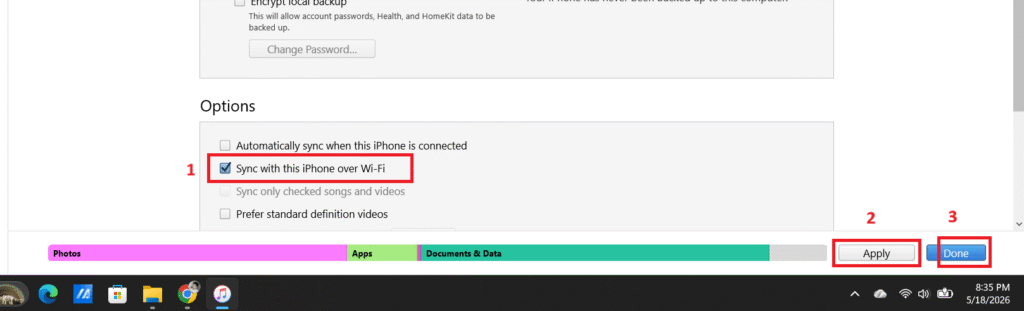
- Enable: “Sync with this iPhone over Wi-Fi”
- Click Apply & Done
Part 3 — Install SideStore in iPhone
Click Here to Download SideStore.ipa from GitHub Open Source Website and copy it in your iPhone’s Files to install iPA file in iPhone.
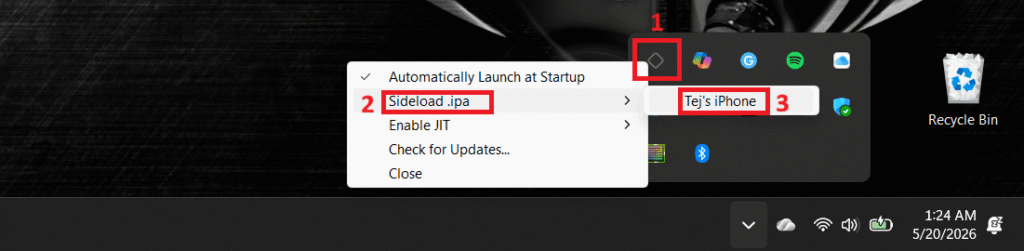
- Hold Shift key
- Click AltServer icon in system tray
- Select: Sideload.IPA
- Choose your iPhone
- Enter Apple ID & Click Install
- Wait for installation
Part 4 — Setup SideStore in iPhone
2 Steps are required to Setup SideStore in iPhone
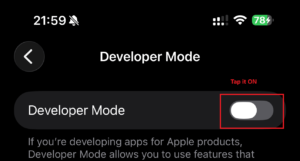
- Enable Developer Mode
- Trust Developer Profile in iPhone
Enable Developer Mode on iPhone
- Open Settings
- Navigate to Privacy & Security → Developer Mode → Turn it ON
- Tap Restart
- Passcode May Required
- After reboot, confirm Developer Mode
Trust Developer Profile in iPhone
- Open Settings
- Go to: General → VPN & Device Management
- Tap your Apple ID profile
- Tap Trust “Apple ID”
- Allow Permissions
- Done

Part 5 — Configure Pairing File with SideStore
On Opening SideStore, you will receive a pop-up asking for “Pairing File“.

Follow these steps to configure “Pairing File“.
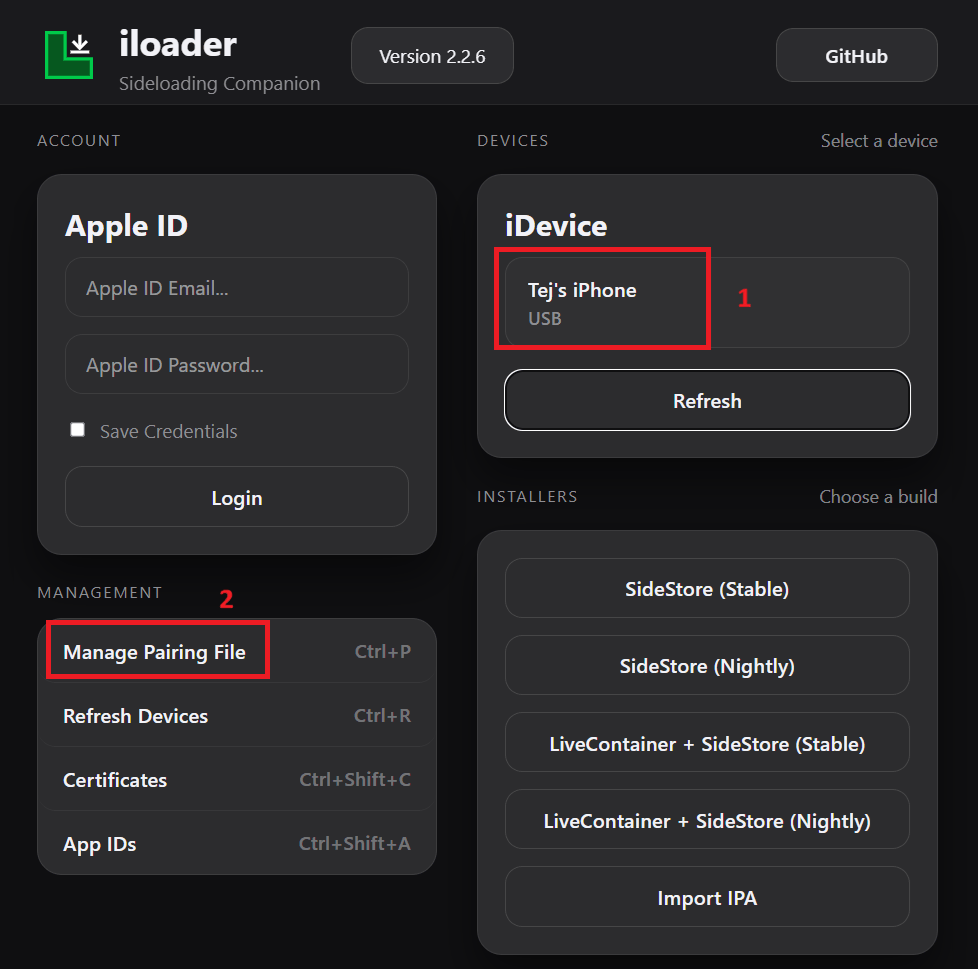
- Click Here to Download iLoader (exe installer) in Laptop
- Run iloader-windows-x64.exe
- Connect iPhone to Laptop via a USB
- You Will See Your Device in iloader
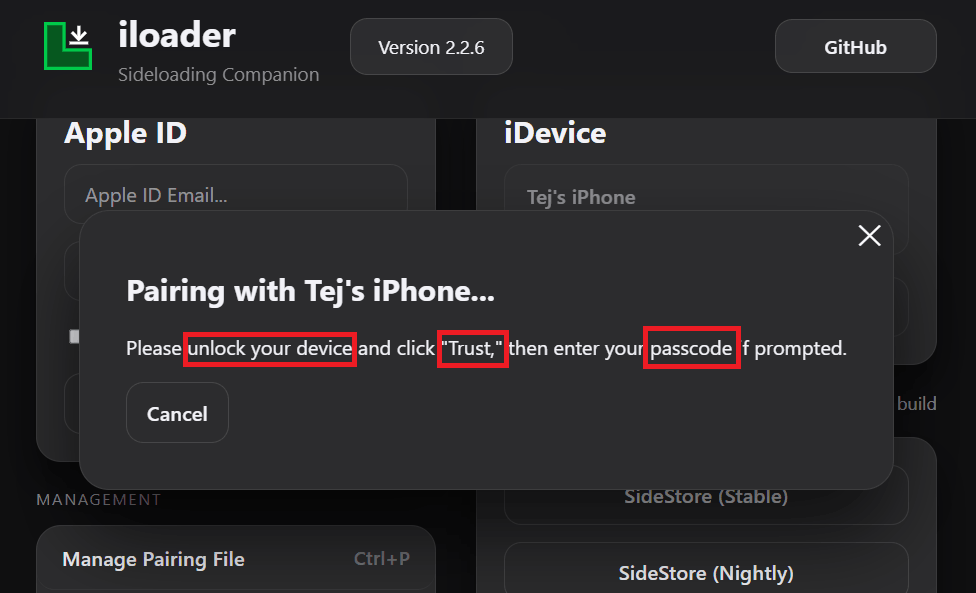
- Click ‘Manage Pairing File‘
- Unlock Your Device
- Tap Trust & Enter Passcode if promoted
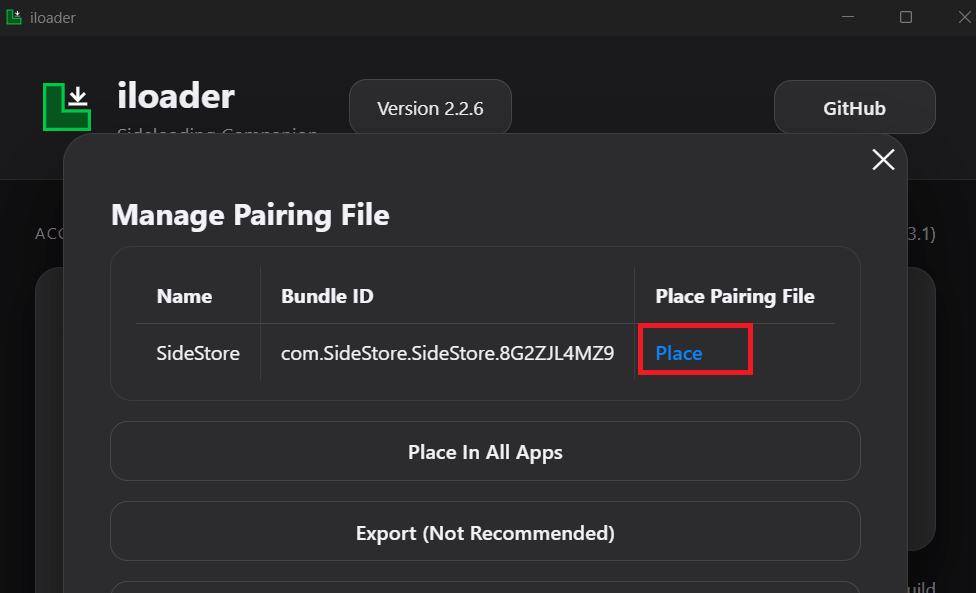
- Click ‘Place‘ on Laptop
- Pairing file placed successfully! should appear in green.
- Launch SideStore
- You will see SideStore opening normally in iPhone
- Now, Proceed to Part 6
Part 6 — Steps to Login in SideStore
In this step we will login in SideStore, & will make sure everything is configured perfectly.
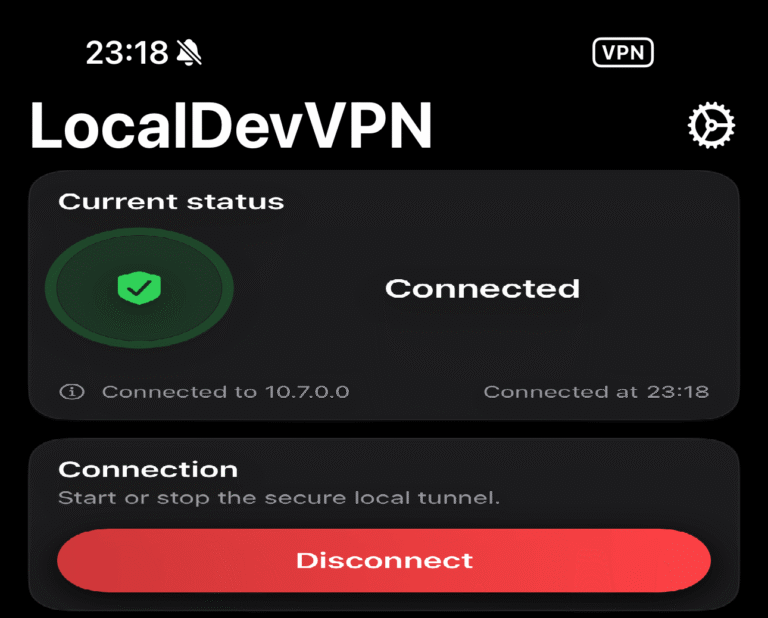
- Download LocalDevVPN or StosVPN from AppStore
- Open VPN & configure & connect it.
- Launch SideStore
- Go to Settings and Tap Sign in with Apple ID
- After Login
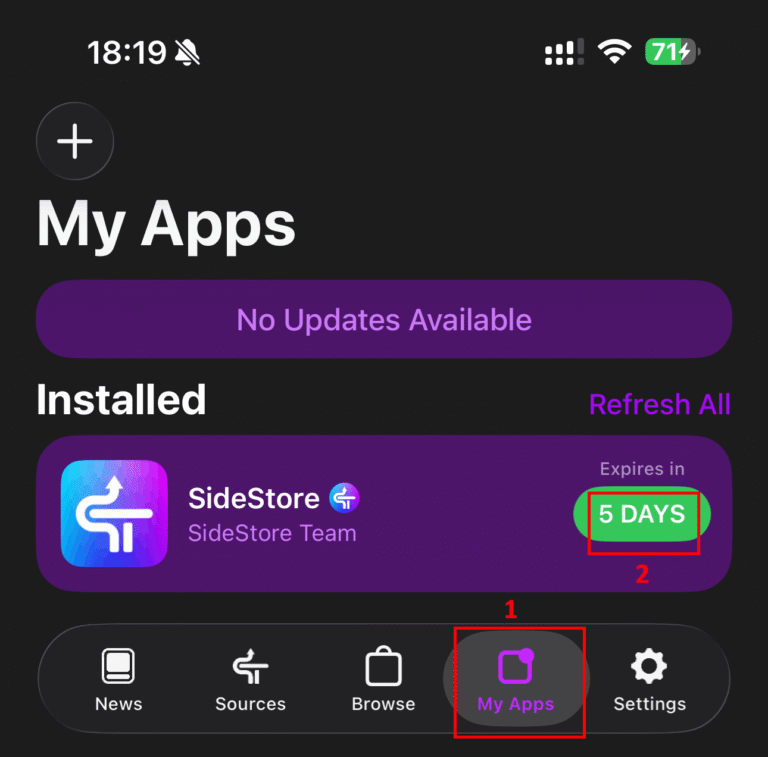
- Go to My Apps and Tap on 7 days to check if refreshing are working fine.
- When “App Contains Extensions” dialogue box shows up, just tap “Keep App Extensions (Use Main Profile)“
- Let’s Proceed to Part 7 to install LiveContainer

Part 7 — Installation of LiveContainer Using SideStore
LiveContainer enables you to install IPA file in iPhone.
Click Here to Download LiveContainer.IPA from GitHub

- After Downloading LiveContainer.IPA
- Place this IPA file in Files in iPhone
- Connect LocalDevVPN
- Now, launch SideStore
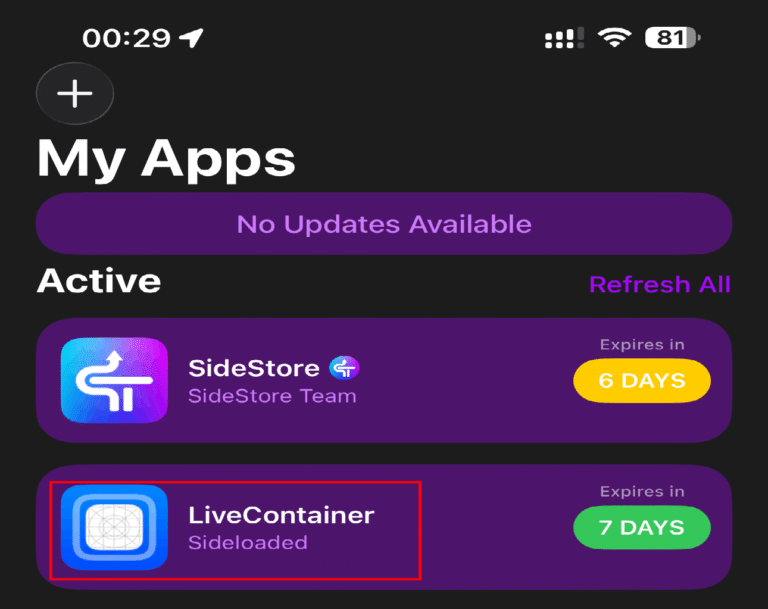
- Go to My Apps
- Tap “+” icon on Top Left corner
- Select LiveContainer.IPA
- Tap “Keep App Extension (Use Main Profile)“
- Now, You will see LiveContainer icon in your iPhone.


Part 8 — Testing of LiveContainer
- Launch LiveContainer App
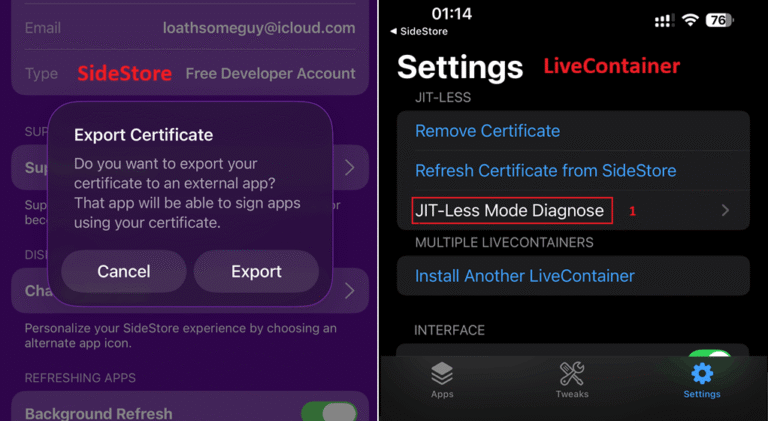
- Tap Settings at bottom right corner.
- Tap “Import Certificate From SideStore”
- It will navigate to SideStore and will pop-up to Export, tap Export.
- You will be back redirect to LiveContainer
- Tap JIT-Less Mode Diagnose
- Run “Test JIT-Less Mode”
- There should be “Success” Test Passed.


Part 9 — Installation of LiveContainer2
Why LiveContainer2 is required?
When you open a sideloaded app inside LiveContainer, that app actually runs through LiveContainer itself. Because of this limitation, only one app can stay active at a time.
Example:
- Suppose you open a YouTube Mod app using LiveContainer.
- Now, if you try to open an InstaMod app from the same LiveContainer, the YouTube app will automatically close.
That’s where LiveContainer 2 becomes useful.
By installing a second LiveContainer, you can run two different apps separately at the same time.
Example:
- LiveContainer 1 → Running YouTube Mod
- LiveContainer 2 → Running InstaMod
Now you can switch between both apps without one closing the other.
- Connect LocalDevVPN
- Launch LiveContainer App
- Tap Settings at bottom right corner.
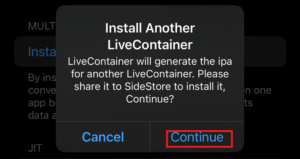
- Tap “Install Another LiveContainer“
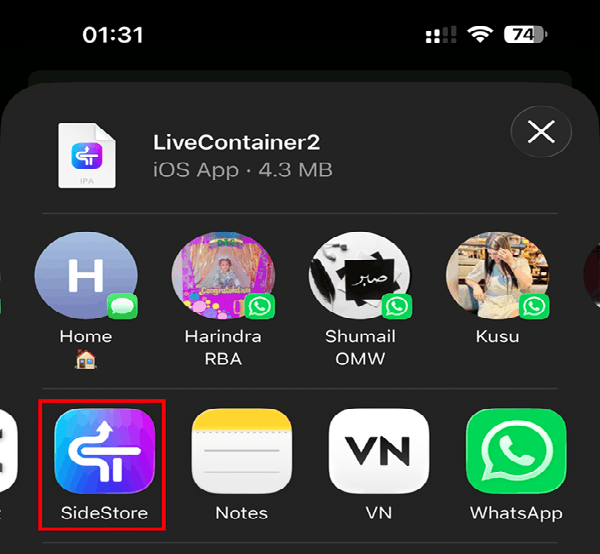
- Click continue & select SideStore and wait for it to get installed.
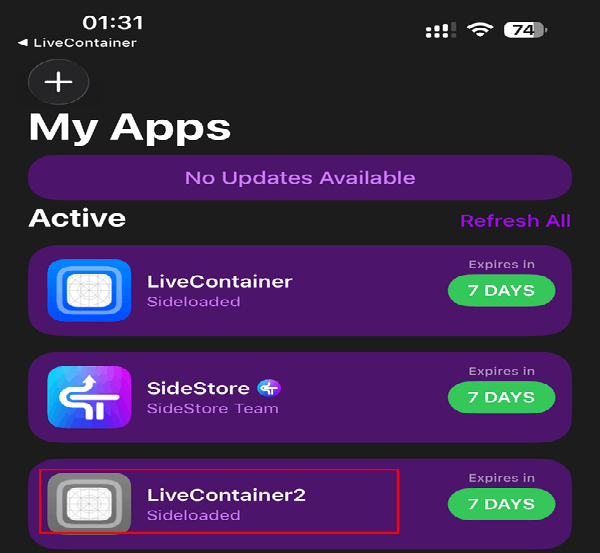
- You will see LiveContainer2
Part 10 — Unlimited Sideloading/ install IPA File in iPhone
Join My Telegram Channel to Download Premium IPA files (if you don’t have) e.g. YouTube Premium, InstagramMod, Spotify Pro, Capcut Pro, TeraBox 1TB Unlocked, 8Ball Pool Mod (Extended Guideline) from my telegram channel and place it in your iPhone Files directory to install IPA file in iPhone.
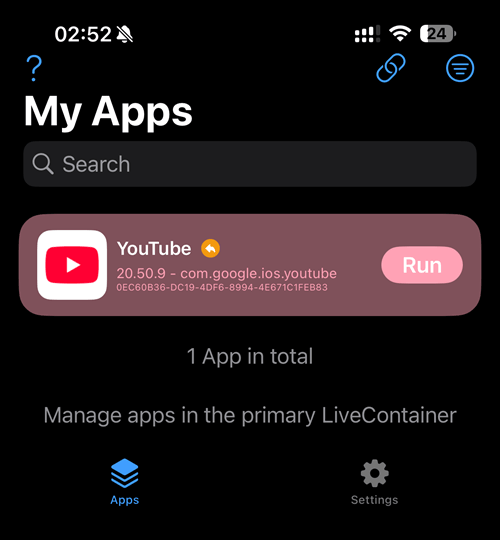
- Launch LiveContainer
- Tap + at top left corner.
- Tap “Install IPA File“
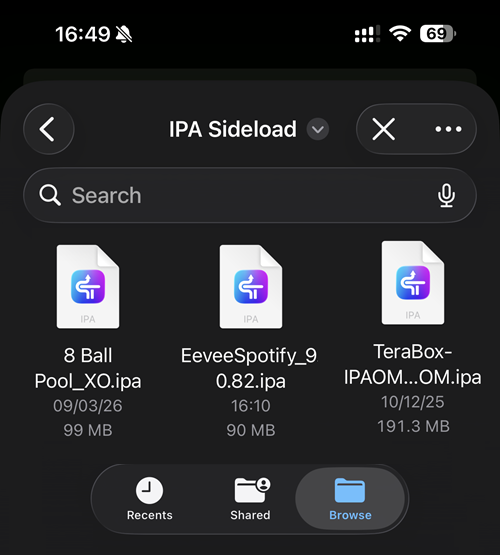
- It will navigate you to the iPhone Files
- Select Your IPA File. eg. YouTube+
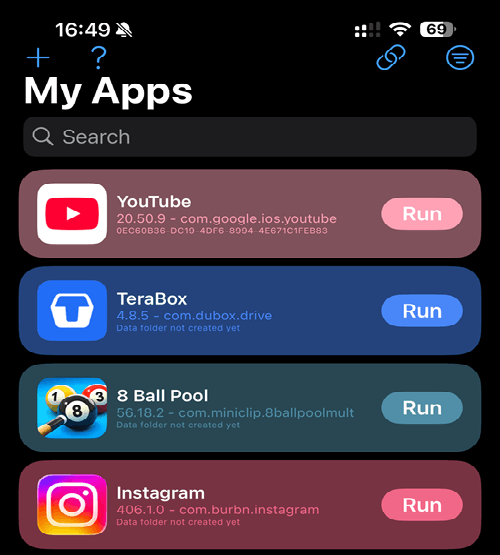
- Wait for it to install in LiveContainer
- Similarly choose another file e.g. Spotify Pro and installed it.
- Thus, you can install IPA file in iPhone without any limit.

Part 11 — Method to move App from LiveContainer1 to LiveContainer2
Join My Telegram Channel to Download Premium IPA files (if you don’t have) e.g. YouTube Premium, InstagramMod, Spotify Pro, Capcut Pro, TeraBox 1TB Unlocked, 8Ball Pool Mod (Extended Guideline) from my telegram channel and place it in your iPhone Files directory to install IPA file in iPhone.
- Launch LiveContainer
- Tap & Hold the App “YouTube“, which you want to move to LiveContainer2
- Go to Settings
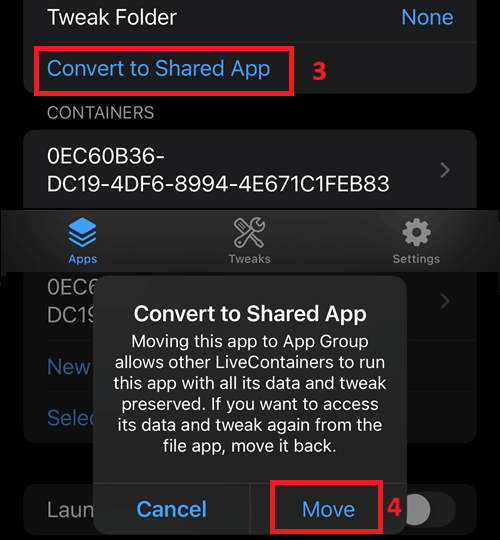
- And Tap “Convert to Shared App“
- Then Click “Move“
- Now, you can see the YouTube in LiveContainer2
- Repeat the same for another App
- Now, for an example: if you are Listening to music in Spotify Pro via using LiveContainer1, then you can use Youtube Premium via LiveContainer2 or vice-versa.

How to Create Shortcut to Launch Any App
It might be irritating to some users to launch any app by going through LiveContainer. So, shortcut comes in picture. You can create short of any app and add it on iPhone home screen.
- Launch LiveContainer
- Tap & Hold the App e.g. “Spotify“, for which you want to create shortcut
- Select “Add to Home Screen”
- Click “Copy Launch URL”
- Download “ShortCut” App from AppStore. If you don’t have.
- Launch ShortCut App
- Click + and Search for “Open URLs“
- In URL placeholder paste the URL
- Rename the LiveContainer with LiveContainer2 so that App lauch in LiveContainer2
- Save it by clicking “✅”
- Choose Share icon
- Add to Home Screen
- Rename & Choose App icon/image accordingly
- Click “Add“
- You can See Spotify icon in iPhone
- Run it & Allow Permissions (one time)
- ENJOY !!!
How to bypass Manual 7 days Refreshing
App must be refreshed once a week in order to prevent from being revoked. So, shortcut comes in picture. I have created a shortcut so that your apps will keep on refreshing twice a week. I prefer 04:00 AM, as it’s my sleeping time. Click on the link below:
Frequently Asked Questions (FAQs)
Why 2 LiveContainers are requried?
By installing a second LiveContainer, you can run two different apps separately at the same time without one closing the other.
Is there any limit to sidelaod apps?
No, unlike AltStore, you can installed unlimited IPA files without any restrictions.
Do I need to refresh manually within 7 days?
No, we can make shortcut so that you don’t have to refresh manually. You can simply make shortcut for the SideStore to refresh twice a week and choose time. I prefer 4Am, since that time I was in deep sleep. Lolz
Where to download IPA files?
You can join the Telegram channels from below links, which post premium, mod & updated IPA files on daily basis.
Is laptop required after setup?
No, laptop is not required once you setup, until your shortcut fail start due to some reason (phone is off) or you’ve upgrade your iPhone to higher version ( in this condition re-install LiveContainer).
I want shortcut
will provide in 3-4 days.
I’d like the shortcut
I will provide on within 4-5 days.
I’d like the shortcut.
sure, bro give me 3-4 days
I need the shortcut
Alright I will publish this coming Sunday 07/06/2026
Hi I’ve installed altstore with 2 ipa and sideloadly with 1 ipa – Can I also install your app with my account? Is it correct that I have not a limit of 3 apps like the apps that I use now?
Once you installed altstore or sidestore, then are eligible to sideload only 2 apps. Since you have already sideloaded 2 iPa with altstore, so you won’t be able to install any more apps. I’d advice you to install sidestore then install live container, then duplicate the livecontantaner and now you can install as many ipa files as you can.